Showing posts with label apps. Show all posts

Wednesday, March 21, 2012

iPads in the classroom: Videos from three perspectives

You're an educator, perhaps a language teacher, and have an interest in how iPads can improve your teaching practice. But maybe you're not super confident about your tech skills and definitely don't consider yourself to be on the bleeding edge of technology. With the release of the new iPad, you're feeling excited to give this device a try, but you also may be feeling a bit overwhelmed by the possibilities. If so, then welcome to the club! You're definitely not alone. This is how many educators are feeling with regards to using technology in their classrooms.

The hype is all well and good, but when it comes time to actually use a new device, things aren't so simple. Take the iPad, for example. It's big in the news right now, and the thing is undeniably cool. But there is a bridge of questions that needs to be crossed before you can turn exciting potential into concrete reality within your teaching situation. For now, however, it can be helpful to simply view how other educators are making use of iPads. What are teachers slightly ahead of you on the technology adoption curve doing? So that's what we'll focus on here: three case scenarios of iPads in the classroom. Not all of these are focused on language learning, but the aim here is to simply give interested yet overwhelmed teachers a chance to see some examples of how it's being done. I invite you to take a few minutes and check out the videos below. Hopefully after you've done so, you'll have a wider view of what's possible for you and your students.


Case 1: Archbishop Mitty HS iPad pilot program (San Jose, California)
This article over at Siliconvally.com chronicles how the entire school is jumping in head first into using iPads with their students. Basic issues are addressed, such as who controls the iPads, how many are currently being used, how the school is managing the costs involved, and some of the main apps and accessories that teachers are making use of. For now, just watch:

A few things stand out for me when I watch this video, mostly how cool it must be when an entire school district gets behind this sort of technology use. It's amazing to see what is possible when everyone, from teachers to students to administrators, moves together. I also feel a bit envious and depressed because in my teaching situation we are nowhere near such a level! It's basically just me and a few like-minded colleagues interested in doing something with iPads up against a slow-moving bureaucracy. [Sigh] Still, it's good to see how things could be. Although this clip doesn't get into anything specific, I can take away a few things, such as the way students are collaborating in groups with their iPads. Perhaps I could do something like that, but how?

Case 2: The iPad for building literacy
Here is a totally cute and well-produced little clip featuring elementary school children in the States. They talk about how they are using iPads in their class for learning how to read. This one is good for language teachers, as the activities and apps they feature are easily transferable to an ELT setting. Check it out:
Overall, I like how this clip features students working in pairs; this means you don't need to have an iPad for every student. In fact, even if you only had a few, they could be used if you set up your class in a kind of "station" arrangement: students, in pairs, could rotate around to different stations in the room, doing different sorts of language practice at each one- speaking practice here, reading Graded Readers there, and reviewing vocab or some other activity with an iPad over here.


Case 3: How one teacher personally uses his iPad
Whereas the first case modeled program-wide iPad implementation and the second looked at specific usage examples, this final case showcases one teacher's perspective. Bob Smith's presentation runs about 14 minutes and introduces the iPad in an accessible way to educators who are just beginning to think about using this technology. Issues covered include the iPad's form factor and cost, student uses, the advantages of e-textbooks, faculty uses, classroom management (via the app Teacher's Attaché), and giving traditional presentations (via Keynote). The app Sadun's Whiteboard, an app that turns your iPad into an electronic smart board, is also demonstrated.
So there you have it: a brief look at how iPads are being used in the classroom, from three different perspectives. Again, my aim here was to give teachers just staring out with iPads some visual models and ideas of what's possible. Although these clips do not all directly relate to language teaching, I hope that seeing how this device is being used has been helpful. If so, then we'd love to hear from you.

From watching these clips, what has stood out for you?

Note: the photo above was taken from this page.

Wednesday, March 14, 2012

The NEW iPad: What's in it for language teachers?

As you may well know by now, Apple has announced the release of a new iPad. And in case you missed last week's keynote presentation, here are 90 seconds of mind-blowing, amazing, and incredible highlights :-)

↵ Use original player
← Replay
X
i
Okay, there you go. Looks great! But what's in it for language teachers? In what ways will this new iPad be an even more effective tool for enhancing language learning? Let's break it down by looking at what benefits the new hardware and software improvements may bring.


New hardware
While this year's iPad looks almost identical to the iPad 2, the under-the-hood technical improvements promise to make significant enhancements to the overall user experience, thus making this machine a more effect learning tool. First off is the killer new Retina display. In short, it's going to be gorgeous to look at. Photos and video will look even better than they do now, and text will be easier to read. While this does not directly impact its efficacy as a language learning tool, the new display will have a subtle yet powerful overall effect. The "wow factor" of the device should continue, making it even more exciting to use for students and teachers alike. The faster processor and ability to use more advanced data networks (such as 4G) will also help improve usability in practical ways. For example, look forward to not having to wait so long for a Google Map to render or for a video to start running. For sure, a faster, zippier machine will be a big plus. Next, the new iSight camera promises to improve the quality of projects involving photos or video. The five mega-pixel camera will take better photos and be able to shoot full high definition (1080p) video. It will now be possible to create more ambitious projects with the device, a theme we'll be revisiting frequently in future posts on this blog. Finally, in addition to the new iPad, Apple announced a new version of the Apple TV, that little back box you attach to a big-screen TV. The Apple TV offers teachers the ability to stream video at full HD resolution and wirelessly mirror your iPads display on your classroom's big-screen TV. This will open up some powerful capabilities, again something we'll be writing more about on this blog. Finally, if you're happy with the current iPad 2 and money is an issue, then you'll be glad to note that Apple will continue to sell the 2nd generation device at a reduced price (US$399).

New software
While the new iPad's hardware is exciting enough, the real benefits of the device manifest through the software. Most exciting were the updates to iLife apps GarageBand and iMovie, and the introduction of iPhoto. All of the iLife apps are now available for the iPad. Let's take a look at what's new in each one. First up, GarageBand. As before, this is a powerful and fun tool for creating music. It can also be used as an audio editor for recording and editing spoken interaction, creating podcasts, or just for mucking about and having fun. The new key improvement is Jam Session, the capability of recording up to four people playing at the same time. Check it out:

↵ Use original player
YouTube
← Replay
X
i
Jam Session looks really exciting and will be a boon for students and teachers who wish to make music with their iPads. How such a project can help improve language education is a topic worthy of exploration.

Next up is the refresh to iMovie, the video editing app. Combined with the new and improved camera and display, this update promises to make video editing projects easier and more fun to create. I'm especially looking forward to the new "movie trailer" feature, which will help students new to video editing create high quality video clips right off the bat. Check out this product run through to see what the new iMovie can do:

↵ Use original player
← Replay
X
i
Finally, iPhoto. This app looks simply spectacular and will greatly improve the ability to edit and share photos. As with iMovie, this app will really take advantage of the improved display, processor, and camera. I expect iPhoto will be a cornerstone for photo-based projects on the new iPad, enabling students to create and share some stunning work. Take a look at this product run-through and imagine the possibilities.

↵ Use original player
← Replay
X
i
So there you have it- the new iPad. The combination of new hardware and software offers lots of promise for making this an even more effective tool for enhancing language learning in numerous creative ways. I hope you found this overview helpful. As I mentioned, in future posts we'll be exploring more in depth what can be done with this amazing device. If you have any questions or feedback, we'd love to hear it. This blog, after all, is for you- the working language teacher interested in enhancing your teaching practice with powerful new technology.

Monday, September 5, 2011

Apps featured in new iPad for education commercial

Apple recently released a new iPad commercial entailed "Learn." It focuses on using the iPad for educational uses. Since that's also one of the key aims of this blog, I thought it would be fun and useful to take a detailed look at the apps featured in this 30 second TV spot. There are a surprising number of them. Not all are for teaching a foreign language, but since that's what I do, I'll look at all of them and ponder how they could be used in an EFL setting. First up, the ad:


Are you curious about new ideas, do you want to learn a new language, or just a new word? Maybe you want to know more about anatomy, or astronomy. You could master something new, or uncover a hidden talent. There’s never been a better time to learn.

Pretty standard fare, as recent iPad commercials go these days. Apple often shows the device in action and focuses on what you can do with it rather than on the power of its processor or other technical aspects. Good strategy, IMHO. As an educator, the apps in this particular spot caught my eye. I wondered what they were and if it could be possible to use them in my teaching practice somehow. Let's take a closer look at each featured application and imagine how they could be used to teach English in Japan:

Are you curious about new ideas?
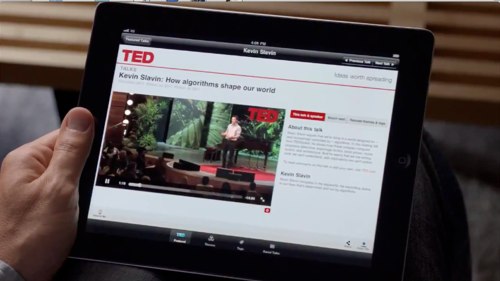

TED Talks app
This is the TED Talks app. I know well because I have it! You can access the TED Talks very conveniently from this application, browsing the featured ones, by themes, tags, or ones you've saved. You can even click an "Inspire Me" button and have something random and cool come up based on what you're in the mood for and how much time you have to watch.

As for classroom applications in an EFL setting, obviously this one would be ideal for advanced English learners, perhaps in a content-based seminar course or as a source of info for a particular project. It could also prove useful in a public speaking class. The language may be too difficult for most students, but you could have them focus on other elements that make up good speeches, such as organization, slides, and body language.

Do you want to learn a new language?
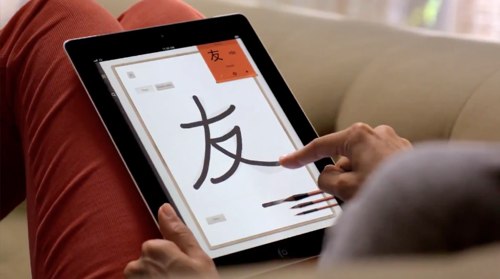

Do you want to learn a new language
This featured app is called Chinagram-Chinese Writing. It "tells the story of Chinese writing, explaining its rationale and showing its beauty, sign after sign." More than just a simple program to teach you how to write some Chinese characters, this app seeks to use the writing practice as a way of introducing the learner to Chinese history and culture. Very interesting idea!

Besides being a useful app for teachers to brush up on their kanji, this app could act as an interesting conversation starter about writing, history, and culture. Japanese kanji are based on Chinese characters, so most of our students would know these. Depending on the level of your students, you could ask them all sorts of questions about the characters in the program and about learning to write kanji in general. In other words, you can get your students to practice English by helping them share a part of their own culture. And, if you happen to teach some Chinese students, all the better. The cultural info this app presents can help widen the scope of your conversations.

Or just a new word?
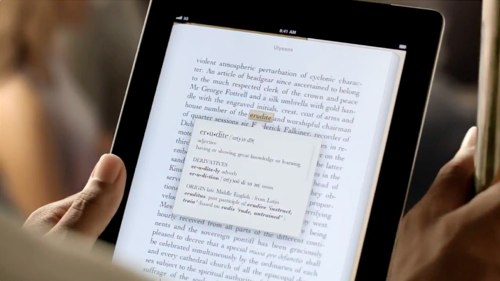
IBooks dictionary
This screenshot shows the dictionary function in iBooks, one of the many features in this app that make reading on an iPad a pleasure. It's quite a convenient way to look up new words while reading. Naturally, this could be a very helpful tool for English language learners. Via this app, you can access the Apple iBooks Store to purchase and download numerous books.

However, the Japan-based iBooks Store is limited to old, public domain classics like Moby Dick, Grimm's Fairy Tales, or Stories from Hans Andersen. Too difficult or stuffy, perhaps for most Japanese learners? The inability to buy large varieties of books at various levels limits the usefulness of iBooks to higher level students. However, with a US iTunes account, it would be possible to download books from the USA iBooks Store. There are other ways to acquire reading materials on an iPad, but as far as I know, the in-text dictionary function is only available in the iBooks app. Please correct me if I'm wrong!

Maybe you want to know more about anatomy?
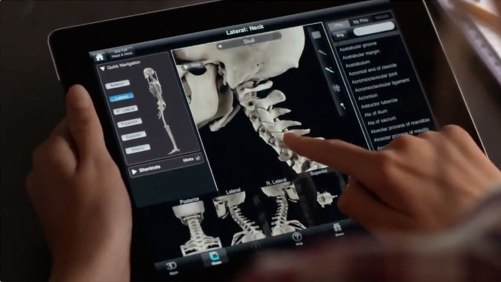
Skeleton system pro app
This is Skeleton System Pro II (NOVA Series), an app that teaches the skeletal system via an interactive 3D model of the human skeleton. Applying this for EFL would be a stretch, but it could be very useful if you are teaching English to doctors or medical students. I have met teachers in Japan who do, so this could be an excellent source of English technical vocabulary in a TESP teaching context.

Or astronomy…
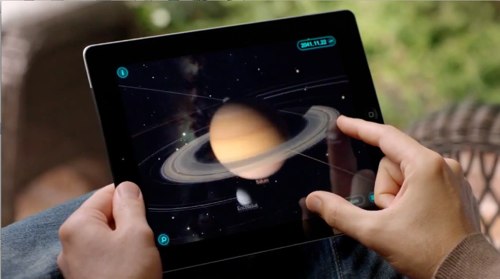
Solar Walk 3D app
There is a particular genre of iPad app that allows users to point their iPad to the night sky and gather info via an augmented reality layer of information. This app, Solar Walk, is not one of them. Instead, it allows you to "navigate 3D models of the solar system, observing all the planets up close, learn their trajectories, inner structure, history of their exploration, and points of interest." It includes reams of information, some of it conveyed via movie clips. Use with 3D glasses for a full immersive effect. Looks very cool!

As with some of the other apps in this commercial, the biggest potential of this app for EFL instruction lies in its "conversation starting" ability with students interested in astronomy. The "wow" factor of this app looks big, especially with the 3D effect. You can pretty much guarantee your students will be paying attention. If they are at lower levels, this could be a fun way of teaching the names of the planets. If they have more ability and interest, then this could be a terrific gateway to conversations about our solar system, space travel, and other related topics. The video clips could also work as listening practice.

You could master something new
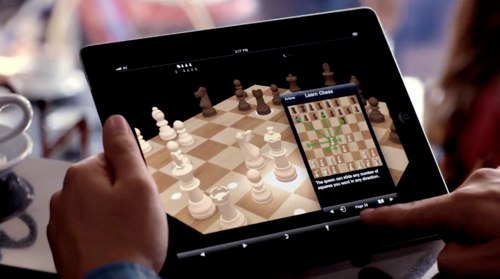
Chess app
This one is t Chess Pro, and it's an app for learning and playing chess. There are numerous cool features, such as the ability to play 1 or 2-player games, a strong computer opponent, an integrated "Learn Chess" eBook, and an Opening Library option that enables you to study opening move theory as you play. Via Game Center, you can also play with friends on different machines in realtime. Games have always been and continue to be a classic means of helping students learn English. Especially in an informal English Lounge-type setting, games enable a relaxed atmosphere where you can kick back and simply use English without it being a big deal. At our English Lounge at Toyo Gakuen University, we have numerous games on hand- playing cards, Jenga, various board games, and the like. Chess via iPads could also work. Again, the idea would be to use the game to give you something to do while you make conversation with your students. For teachers and students interested in chess, this app could be a good thing.


Or uncover a hidden talent
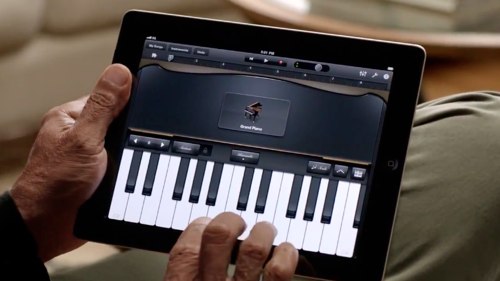
Garageband app
This is the iPad version of GarageBand, the program that allows you to create music and edit audio clips. The iPad version is surprisingly robust, enabling the user to create some great sounding tunes without having to know much about playing an instrument. With a special attachment, musicians can also plug in their instruments or microphones and record directly into the program. The included "smart instruments" sound great.

Learning to do anything with this program beyond playing around with it for a few minutes will take some time, however. It could be the basis of a very interesting and fun music project with your students if you are committed to see it through. If you have some that are musically inclined, this app holds great potential. Otherwise, it could be used as a conversation starter about music in general. Students will get a kick out of playing around and making sounds, all of which can then set the stage for a chat about music.

There's never been a better time… to learn
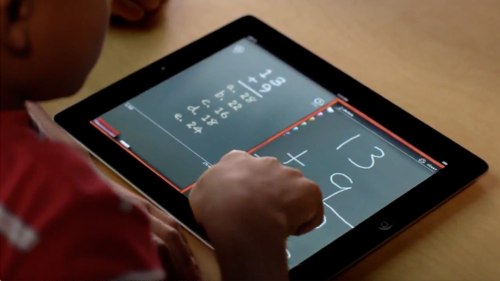
Mathboard app
This is Mathboard, a very slick looking app for learning basic math functions, such as addition, subtraction, multiplication, and division. It includes built-in quizzes and problem solving advice. Obviously geared for the US K-12 education market, using this app for EFL in Japan would be a stretch! It could work to help teach numbers to beginning students, I suppose.

So there you go- a run down on all the apps for education featured in the recent "Learn" iPad TV commercial. They all look great and showcase the power of the iPad as a powerful learning tool. For EFL purposes, some of these apps could be very useful in particular situations with particular students, mainly as interesting ways to engage them in conversation.

What do you think? Can you see yourself using any of these apps with your students? If so, please share your ideas below in the comments section.

Wednesday, November 24, 2010

Jerry’s iPad moments: Conference going (Part 1)

My main intention for this column is to write about how I use the iPad in my teaching practice, but this time I’ll use this space to focus in on another aspect of our teaching profession- attending conferences. I used my iPad for the first time at a conference this weekend in Nagoya, at the annual JALT gathering, and I must say it enhanced my overall experience in subtle yet significant ways. To help you consider how you might use an iPad at a conference, I’d like to share my thoughts and reflections on how it went. In this first of two posts on the topic, I’ll go over some of the apps I used most and consider some other ways I used my iPad in part 2.

The workhorses: Google Maps, Safari, and iCal
Far and away the most useful apps were ones that came pre-installed on my iPad: GoogleMaps, Safari, and iCal. All were extremely handy in various situations.

Google Maps
Google Maps was invaluable when walking around the downtown area. Thanks to the built-in GPS of my iPad 3G, Google Maps was able to track my movements. This helped me get smoothly to the conference site from the station, to my hotel from the conference site, and to some good drinking places. Watching that little blue ball move down the street as I walked made it feel like I had a car navigation system in my hands. It was surprisingly accurate, especially when I zoomed in close. As a result, I was able to eliminate stress from not being able to get around. Mental energy that could have been lost dealing with issues of simply getting from point A to point B was redirected toward more important ends. I could relax and concentrate on my presentations and other things I needed to do. It may seem like such a simple thing, but not having to worry about where you are going really made a big difference. It also made me feel glad I had spent the extra yen for the 3G model- you could still make use of Google Maps with the Wifi-only iPad, but you wouldn’t have the benefit of having the app track your movement in real-time.

Safari
As you can imagine, Safari, the web-browsing app on the iPad, was also extremely helpful. Especially when combined with the iPad’s slim and light form-factor, it really felt like I had the Internet in my hands. And yes, as Steve Jobs has said, it was “magical.” For example, during the 2nd plenary speech, a presentation by Nicky Hockley on using Web 2.0 resources in the classroom, I was able to visit the various sites she mentioned as she was going over them on her PowerPoint slides. What’s more, this ability was of great interest to the people sitting next to me. Not only was I able to check things out in real-time, but doing so helped me interact much more easily with fellow attendees (this “iPad as ice-breaker” effect is a theme I’ll surely return to in future posts. It’s one of the key ways in which the iPad helps improve communication).

As I looked around the hall during the plenary, I could see more than a few other people using laptops to take notes. This is the way I used to do things. It is still a good way, of course, especially if you can access an Internet connection (like Daniel could with his WiMax gizmo). Since taking notes on my iPad was not as easy for me given the glass software keyboard, my experience this time was focused primarily on accessing supplementary information, on listening and reading as opposed to listening and writing. I had not done this before, and overall I found it helped me stay focused on what the speaker was trying to say. By having the ability to access the net, I could shape the presentation more to my needs. I continued this practice during some of the other presentations, and overall I was very pleased with the control it afforded me. I was now in a position to get more out of the conference and not so dependent on having the speaker “entertain” me.

One interesting experience took place during my colleague Clair’s presentation on vocabulary learning via Smart.fm. One attendee raised his hand and mentioned he was unfamiliar with the service. Without such basic knowledge, I thought, his chances of getting a lot out of the talk would be limited. With a few clicks I found Smart.fm on my iPad, passed it back to him, and he was able to check the site out throughly. When he passed the device back to me, I could tell by the satisfied look on his face he was grateful for the opportunity to have had his question so throughly answered. If I had been using a laptop, I seriously doubt I would have done this. With an iPad, it was like passing around a book. So again, the slim form-factor + Internet connection combo helped create a new way of interacting during a conference.

Finally, Safari came in very handy during the social “liquidation” portions of the conference. While in the flow of conversation, I was able to use Safari to look up pertinent info relevant to the discussion I was having at the time, be it my family’s website, my Facebook page, following the Arsenal-Spurs match live, or to learn about the finer details of fantasy footy from my British mates. This “iPad as social lubricant” really helped bring a new enhanced spin on after-hours chat, helping me share my life, experiences, and ideas in richer ways.

iCal
As a calendar app, iCal was most useful in helping me figure out my plan through each day of the conference. Before arriving, I went through the schedule carefully, inputting presentations I had to do or attend, as well as those I wanted to see. Naturally there were moments of conflict, but having everything there so nicely laid out and easily accessible helped me decide on my priorities. One downside of iCal was that I was not able to share and subscribe to my colleague’s calendars unless I was able to connect my iPad to my MacBook Pro laptop. I felt it would have been nice to email my daily schedule to a few people in order to coordinate our schedules more efficiently. Looking back, perhaps one way of improving this would be to use Google Calendar more in the future. This way I would be able to access and share my schedules on the net, via Safari. This is an area I’ll look to improve on for future conferences. If anyone has any info along these lines, I’m all ears.

To conclude part one, it was the basic built-in functionality of the iPad that I used most during the conference. Google Maps helped me get around, Safari put the power of the Internet into my hands, and iCal helped me manage my time more effectively.

In part two, I’ll take a look at some of the other apps I used at the conference and also take a look at how I can improve my conference going experience in the future.

Finally, I’d love your feedback on what I’ve written or just to hear about your experiences at the JALT (or any other) conference. How have you used the iPad in this situation? Which apps did you use most, and how did the iPad enhance or inhibit your overall experience?